Search This Blog

Friday, 21 September 2012

An error occurred during report processing

"An error occurred during report processing. Index was out of range. Must be non-negative and less than the size of the collection. Parameter Name: index"

I did copy paste of my existing RDL that was using SSAS as datasource and made my all the required changes in the report. But during the report preview I was getting this error “An error occurred during report processing. Index was out of range. Must be non-negative and less than the size of the collection. Parameter Name: index”.
I thought since this is an index related error so there would be some custom code or DLL reference that was throwing this error. But there was neither custom code nor any DLL reference on my report. After a lot of efforts I have found that:
There was a Filed Source that was bind with two different Field Name. After correcting the Field   Source, this error has disappeared.

I am sharing this issue with you so that it will save your couple of valuable hours.

Thursday, 20 September 2012

Sample RDLS

1.       Bar Chart Sample


Sample RDL for the Bar chart can be downloaded from

You need to only change the datasource of the RDL.

2.      Line Chart Sample


Sample RDL for the line chart can be downloaded from

You need to only change the datasource of the RDL.

3.      Place Bar Chart inside a table


Sample RDL for the Bar chart can be downloaded from

You need to change the datasource of the sample RDL.

4.      Place Bar Chart inside a table and consume un-pivot data


Sample RDL for the Bar chart that is consuming un-pivoted data can be downloaded from

You need to change the datasource of the sample RDL.

5.      Questionnaire report using Matrix with Indicator control

       
        Sample RDL that illustrate the indicator control can be downloaded from
        Use of Indicator Control

        To execute this RDL, you need to only change its datasource.

Export Matrix data into a Tabular format in CSV export

Generally we need CSV file format for further operations like in data analysis or as an input file for any data processing etc. But usually we design the report in such a way that makes it rich in visualization and information. So the question comes in our mind is how can we achieve both the things in the one report?
Let’s discuss a scenario where we have placed matrix control on the report and want the data in tabular format in CSV export.
Image-1 is the report output  
Image- 1

and Image-2 is the expected CSV output.
Image - 2

I believe that you can design the matrix as per your requirement. So below I am going to explain the method that will help you to get this expected CSV output.
Step 1:
Select the matrix control and open the property window using F4 key. In the property window, you will see the DataElementOutput property. Set DataElementOutput’s value to NoOutput.
Step 2:
Place a table control on the report and design it for CSV output. Do not place any header row in the table. If you see any header row then delete it. Now give the appropriate name to detail row cells. If you want a specific name for a column in the CSV then you needs to either give that name to cell’s Name property or specify that name in cell’s DataElementName property.
At the end, select this table open the property window using F4 key and set Hidden=True and DataElementOutput= Output.
Image - 3
 In our scenario, table design will look like image-3

Now preview the report and export it into CSV. You will see the desire output in CSV as well as in report view.

Let’s discuss couple of properties of the controls that helps us in getting desire CSV output.
·         DataElementOutput : If you don’t want to see a specific control/cell/column in the CSV export then set it to NoOutput
·         DataElementName : If you specify a value in this property, the same value will appear as a column name in the CSV
·         Visibility/Hidden : If you set a control/cell/column hidden=True then it will not appear in the report preview but it will appear in the CSV export. So apart from hidden=True, you need to set  DataElementOutput= NoOutput

You can download the sample RDL from
You need to only change the DataSource of this sample RDL.

Sunday, 9 September 2012

FORMAT LONG SET OF VALUES QUICKLY

Many times it happens that we get a long list of tabular data in our requirement document and we format it manually line by line to comply with our code. Let’s find a way that will convert this line by manual work into Find and Replace kind of work.
Let’s say we have to use following list of data into T-Sql IN(…,…,…) clause. So every line should be formatted like ‘…’ with a comma (“,”) at the end of each line except the last line.
Gilbert Guy
Brown Kevin
Tamburello Roberto
Walters Rob
Walters Rob
Bradley David
Bradley David
Dobney JoLynn
Ellerbrock Ruth


To format such kind of values, we will take help of Find and Replace window efficiently.  Let’s see how.
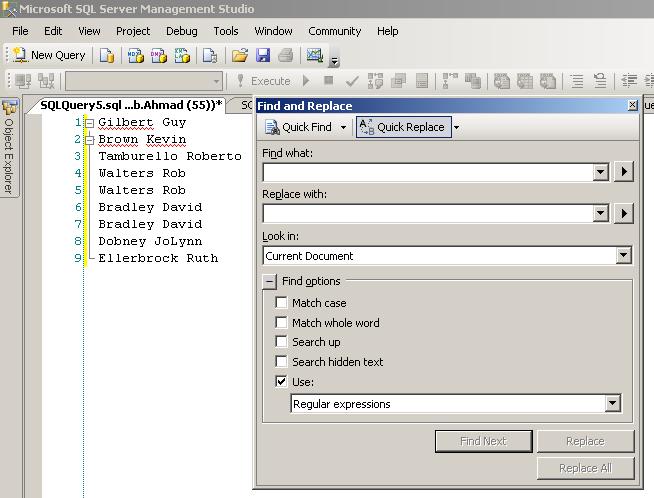
First of all, I will copy these tabular data on sql query window and open the Find and Replace window

Take a sharp look on Find Options at Find and Replace window. There are 5 different options available. I will check the “Use:” option with “Regular expressions” option. Now click on expression builder button and select “^ Beginning of line” option and give “” under Replace with: textbox.

Now click on Replace All button. Now the list of values will look like below.
'Gilbert Guy
'Brown Kevin
'Tamburello Roberto
'Walters Rob
'Walters Rob
'Bradley David
'Bradley David
'Dobney JoLynn
'Ellerbrock Ruth

Now again click on expression builder button and select “$ End of line” option and give “’,” under Replace with: textbox.

Now again click on Replace All button. Now the lists of values are formatted as per our need. We only need to remove last comma (,).
'Gilbert Guy',
'Brown Kevin',
'Tamburello Roberto',
'Walters Rob',
'Walters Rob',
'Bradley David',
'Bradley David',
'Dobney JoLynn',
'Ellerbrock Ruth'
I hope, today you have discovered a new power of Find  and Replace window  with me that will make your day to day life easier to format any line of data just by couple of clicks and save more time.

Let’s do one more click on Replace All button after putting expression as it's appear in the image.
See the output and let me know how much it is useful for your code?


Friday, 7 September 2012

T-SQL: Convert Rows into delimited string


While working on .Net, SSRS or any other application, most of the time we came into a situation where we need table rows into a delimited string in sql output.
Let’s create a table with some data to illustrate this scenario.
Create table #Organization(Org_Id Int Identity,Org_Name varchar(100))
Go

Insert Into #Organization(Org_Name)Values
('AdventureWorks Cycle'),('North America Operations'),
('Northeast Division'),('Central Division'), ('France'),('USA Operations')
Go

Select Org_Id,Org_Name from #Organization

We have multiple ways to achieve the desire output. One of the way is by using
Coalesce() in-build function.
Declare @Output varchar(Max)
SELECT @Output=Coalesce(@Output+Org_Name+',',Org_Name+',') FROM #Organization
Select @Output as OutputValue

Another way is by using XML clause.
Declare @Output varchar(Max)
Set @Output=(SELECT Org_Name+',' FROM #Organization for XML path (''))
Select @Output as OutputValue

Point to remember during using this method is that if your column contains xml markup characters like “&”,”<”,”>” etc then you will get some unexpected output. In this sitution, you need to use Replace() method to get the expected output. To test this problem, add one more record in the #Organization table with value ‘North & South zone’ and test the above sql. In the output, you will notice “North &amp; South Zone” instead of “North & South Zone”

Last but not then least one is by using vairble in T-sql. Other ways are cursor, looping concept etc. that can be used depending on the requirement or sitution.
Declare @Output varchar(Max)
SELECT @Output=ISNULL(@Output,'')+Org_Name+',' FROM #Organization
Select @Output as OutputValue

Point to strongly remember is that NULL column values will result NULL or unexpected result in T-Sql output. So NULL must be handle before using using any of the approach.